How to Implement Push Notifications for Android in MAUI Using Azure Notification Hubs

Andrii Kozmenchuk
Andrii Kozmenchuk
28 May 2026

10 min read

Introduction

Implementing push notifications for Android for the first time can feel confusing. There are several moving parts: generating an FCM device token, handling Android-specific requirements (notification channels, permissions, app icon rules), building the payload, and connecting everything to Azure Notification Hubs so messages can be routed and targeted correctly.
In this article, you’ll learn how to set up push notifications in a .NET MAUI Android app using Firebase Cloud Messaging (FCM) together with Azure Notification Hubs. We’ll go step by step: configure Firebase, add google-services.json, implement an Android FirebaseMessagingService to receive notifications and token updates, and register the device installation in Notification Hubs through your backend.
This guide is aimed at developers with little or no prior push-notification experience. By the end, you’ll understand the Android push flow end-to-end (token → installation registration → payload delivery), and you’ll have a clean baseline you can extend with real-world features like user tagging, version targeting, and notification history.

Azure Notification Hub Setup

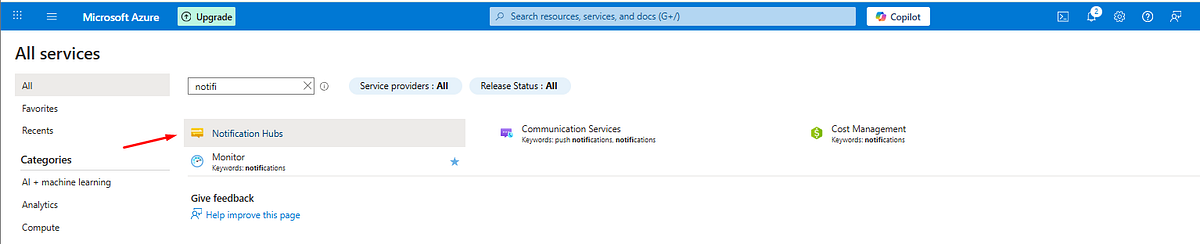
Go to the Azure Portal, open All services, and search for Notification Hubs. Click Create to start configuring a new hub.
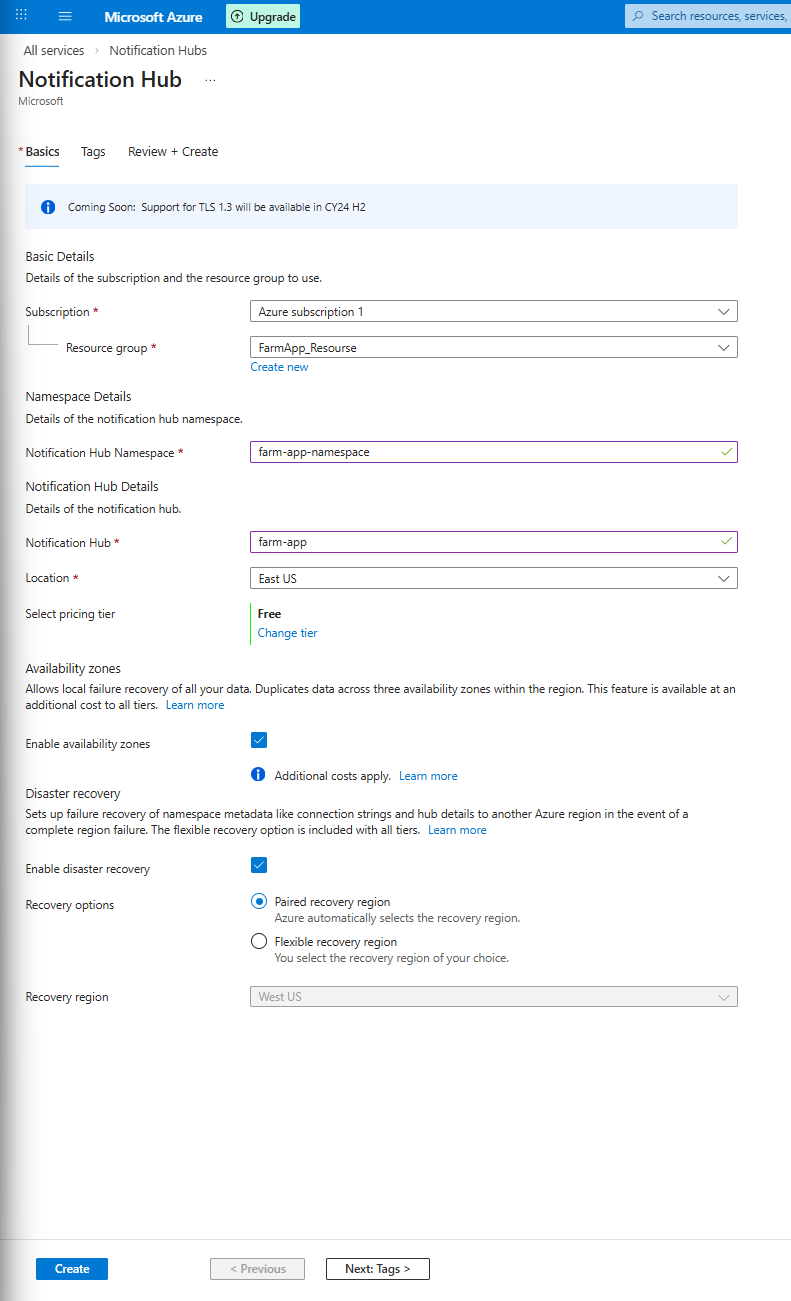
On the Basics tab, fill in the required fields:
  • Resource Group — a logical container where your Notification Hub resource will be created. It helps you organize resources by environment (for example, dev or prod) and manage access and billing.
  • Notification Hub Namespace — a globally unique namespace that acts as a container for one or more Notification Hubs. This is the service-level grouping.
  • Notification Hub — the specific hub name inside the namespace. Your backend will use this hub to register Android devices and send push notifications.
  • Location — the Azure region where the hub will be deployed. It’s recommended to select the same region as your backend/API to minimize latency and avoid cross-region issues.
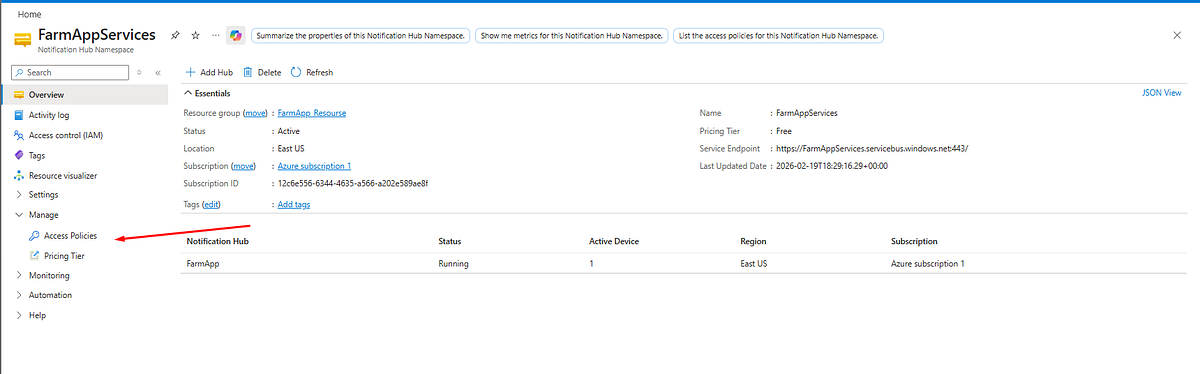
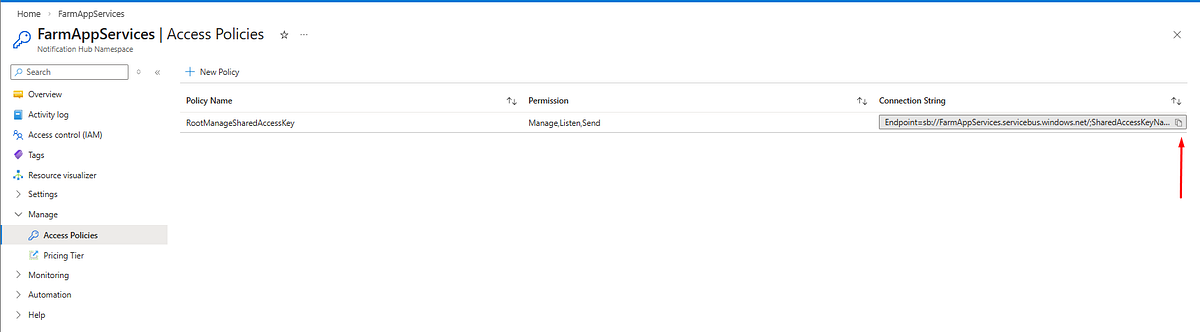
After creation, open your Notification Hub Namespace, navigate to Manage → Access Policies, and copy the Connection String (for example, RootManageSharedAccessKey) and the **Hub Name`. These values are required for backend integration.
Then copy the RootManageSharedAccessKey and store it securely in your appsettings.json or in environment variables (so it isn’t exposed in code or committed to the repository).
Firebase set up (Android)

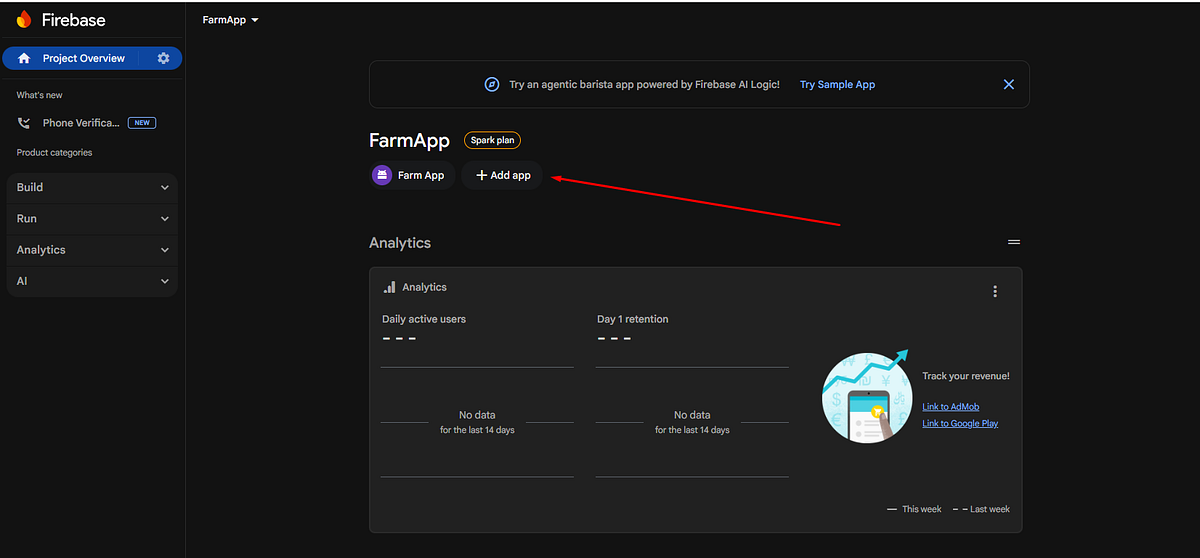
The first of all on https://console.firebase.google.com/ we create new project for your application and choose android platform
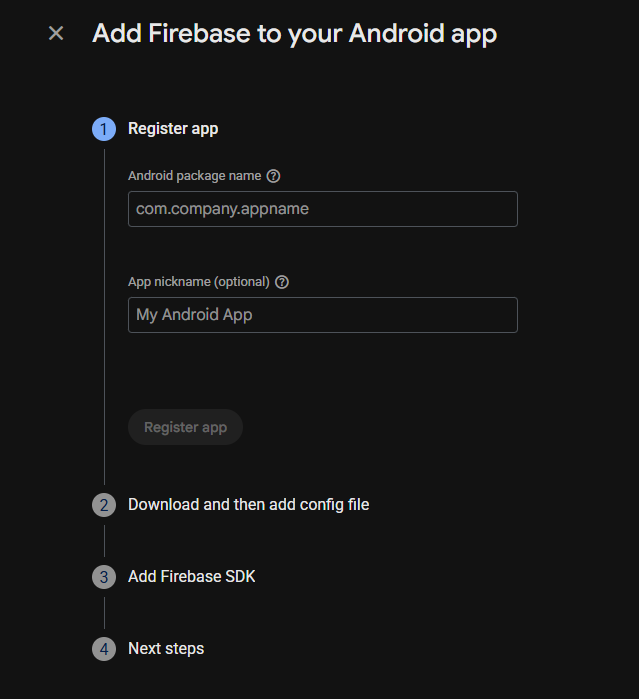
On the first step, you need to add your ApplicationId (the same one used in your MAUI .csproj) to generate the google-services.json file.
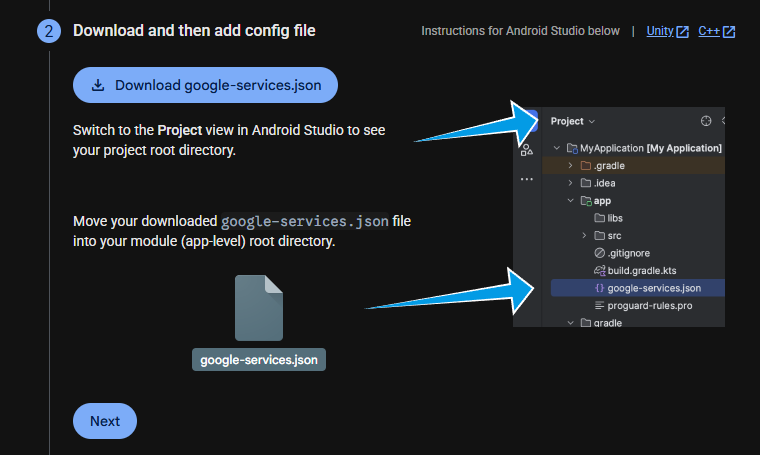
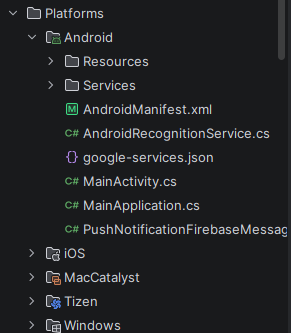
Now dowload the google-services.json and put move it into Platforms/Android in your .NET MAUI project (as shown in the screenshot bottom)
Then you must reference this file in the .csproj so it’s included during the Android build and Firebase can initialize correctly and add the following block to your project file:
<ItemGroup Condition="'$(TargetFramework)' == 'net9.0-android'">
    <GoogleServicesJson Include="Platforms\Android\google-services.json"/>
</ItemGroup>
This ensures google-services.json is applied only for the Android target framework and enables proper Firebase/FCM push notification configuration.
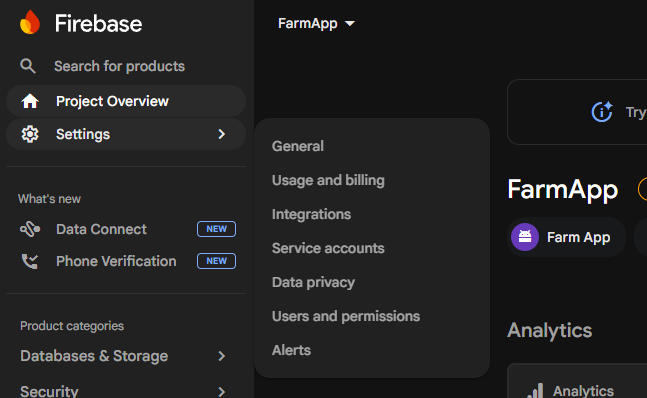
Then go to Service Accounts to create a private key for Azure. Navigate to Firebase Console → Settings → Service accounts.
Here press “Generate new private key”. A JSON file will be downloaded to your machine.
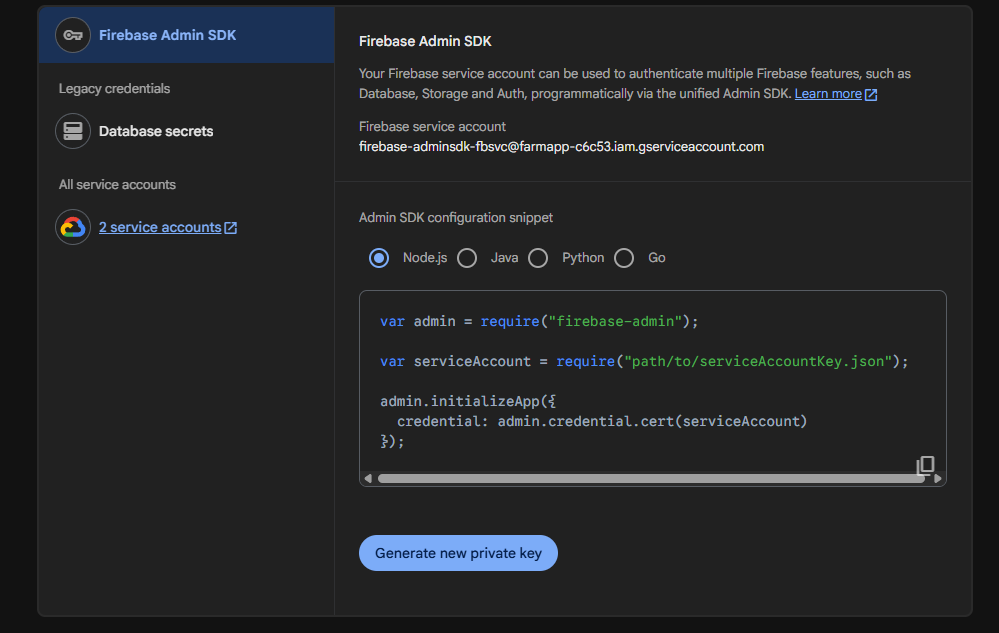
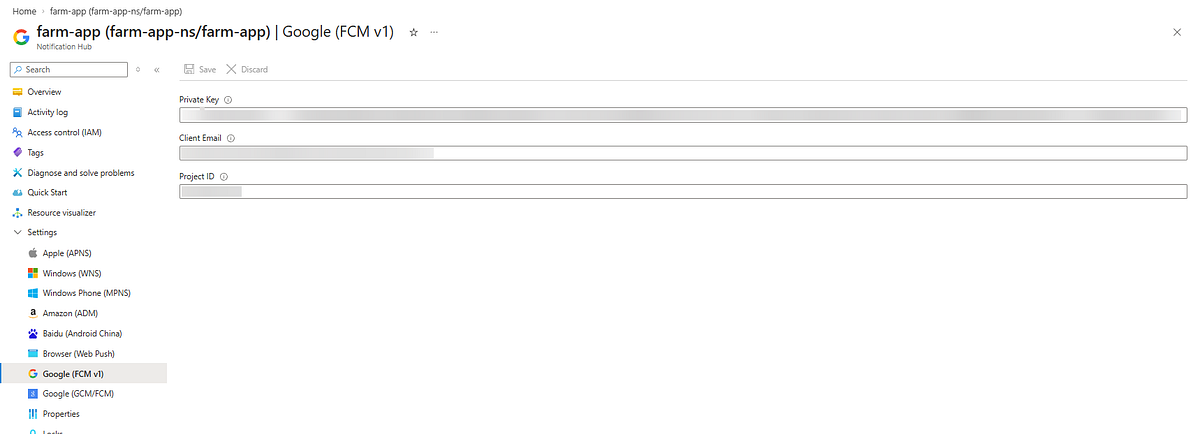
Then open the JSON file and put the data into the FCM v1 fields in Azure. Copy the values from the JSON file into the corresponding fields in Azure Notification Hub -> Google (FCM v1):
  • private_key ->Private Key
  • client_email -> Client Email
  • project_id ->Project ID

Firebase Push Notifications Registration (Android)

Next, add the PushNotificationFirebaseMessagingService. This service is responsible for receiving Firebase Cloud Messaging (FCM) push notifications and handling device token updates. It is registered as an Android Service with the com.google.firebase.MESSAGING_EVENT intent filter, so Android invokes it automatically when a push message arrives or when a new FCM token is generated.
When Firebase issues a new token, OnNewToken forwards it to IDeviceInstallationService via DeviceTokenTcs, so the app can later register or update the installation on the backend. When a push notification is received, OnMessageReceived extracts the title and body from the data payload (with a fallback to the notification payload if not present), initializes a Notification Channel (required on Android 8+), and displays a system notification using NotificationCompat with BigTextStyle for longer message content.
public class PushNotificationFirebaseMessagingService : FirebaseMessagingService
{
    const string CHANNEL_ID = "push_main";
    const string CHANNEL_NAME = "General";

    IDeviceInstallationService? _deviceInstallationService;

    IDeviceInstallationService DeviceInstallationService =>
        _deviceInstallationService ??= IPlatformApplication.Current!.Services
            .GetRequiredService<IDeviceInstallationService>();

    public override void OnNewToken(string token)
        => DeviceInstallationService.DeviceTokenTcs.TrySetResult(token);

    public override void OnMessageReceived(RemoteMessage message)
    {
        base.OnMessageReceived(message);

        var data = message.Data;

        data.TryGetValue("title", out var title);
        data.TryGetValue("body", out var body);

        title ??= message.GetNotification()?.Title ?? "Notification";
        body  ??= message.GetNotification()?.Body  ?? string.Empty;

        DisplayNotification(title, body);
    }

    private void DisplayNotification(string title, string body)
    {
        InitChannel();

        var intent = new Intent(this, typeof(MainActivity))
            .AddFlags(ActivityFlags.ClearTop | ActivityFlags.SingleTop);

        var pending = PendingIntent.GetActivity(this, 0, intent,
            PendingIntentFlags.UpdateCurrent | PendingIntentFlags.Immutable);

        var smallIcon = Resources!.GetIdentifier("appicon", "mipmap", PackageName);
        if (smallIcon == 0)
            smallIcon = Resources.GetIdentifier("ic_launcher", "mipmap", PackageName);

        var notification = new NotificationCompat.Builder(this, CHANNEL_ID)
            .SetSmallIcon(smallIcon)
            .SetContentTitle(title)
            .SetContentText(body)
            .SetStyle(new NotificationCompat.BigTextStyle().BigText(body))
            .SetContentIntent(pending)
            .SetAutoCancel(true)
            .Build();

        var id = (int)(DateTimeOffset.UtcNow.ToUnixTimeMilliseconds() & 0x7FFFFFFF);
        NotificationManagerCompat.From(this)?.Notify(id, notification);
    }

    private void InitChannel()
    {
        if (Build.VERSION.SdkInt < BuildVersionCodes.O) return;

        var mgr = (NotificationManager)GetSystemService(NotificationService)!;
        if (mgr.GetNotificationChannel(CHANNEL_ID) != null) return;

        mgr.CreateNotificationChannel(
            new NotificationChannel(CHANNEL_ID, CHANNEL_NAME, NotificationImportance.Default)
            {
                Description = "General push notifications"
            });
    }
}

DeviceInstallationAndroidService Implementation (Android / FCMv1)

DeviceInstallationAndroidService is the Android implementation of IDeviceInstallationService. It checks that Google Play Services are available (required for Firebase Cloud Messaging), resolves a stable device identifier using Settings.Secure.AndroidId, waits for the FCM token, and returns a fully populated DeviceInstallation object.
The FCM token is provided via DeviceTokenTcs (typically set from FirebaseMessagingService.OnNewToken). To avoid waiting forever, the service uses a 10-second timeout while waiting for the token; if the token cannot be resolved within that timeframe, an exception is thrown. If the token is retrieved successfully, the service creates a DeviceInstallation with:
  • InstallationId = Android device id
  • Platform = "fcmv1"
  • PushChannel = FCM device token
  • Tags = optional tag list used for push targeting
This object can then be used to create or update the device installation on the server side.
public interface IDeviceInstallationService
{
    TaskCompletionSource<string?> DeviceTokenTcs { get; set; }
    bool NotificationsSupported { get; }
    string? GetDeviceId();
    Task<DeviceInstallation?> GetDeviceInstallationAsync(params List<string> tags);
}

public class DeviceInstallationAndroidService : IDeviceInstallationService
{
    public TaskCompletionSource<string?> DeviceTokenTcs { get; set; } = new();

    public bool NotificationsSupported
        => GoogleApiAvailability.Instance.IsGooglePlayServicesAvailable(Platform.AppContext) == ConnectionResult.Success;

    public string? GetDeviceId()
        => Settings.Secure.GetString(Platform.AppContext.ContentResolver, Settings.Secure.AndroidId);

    public async Task<DeviceInstallation?> GetDeviceInstallationAsync(params List<string> tags)
    {
        if (!NotificationsSupported) return null;

        string? deviceToken = null;
        try
        {
            // Wait for device token with 10 second timeout
            using var cts = new CancellationTokenSource(TimeSpan.FromSeconds(10));
            deviceToken = await DeviceTokenTcs.Task.WaitAsync(cts.Token).ConfigureAwait(false);
        }
        catch (OperationCanceledException)
        {
            System.Diagnostics.Debug.WriteLine("FCM token retrieval timed out after 10 seconds");
            throw new Exception("Unable to resolve token for FCMv1 - timeout waiting for token.");
        }
        catch (Exception ex)
        {
            System.Diagnostics.Debug.WriteLine($"Error getting FCM token: {ex.Message}");
            throw;
        }

        if (string.IsNullOrWhiteSpace(deviceToken)) 
            throw new Exception("Unable to resolve token for FCMv1.");
        
        var deviceId = GetDeviceId();
        if (string.IsNullOrWhiteSpace(deviceId)) return null;

        var installation = new DeviceInstallation
        {
            InstallationId = deviceId,
            Platform = "fcmv1",
            PushChannel = deviceToken,
            Tags = tags
        };

        return installation;
    }
}

public class DeviceInstallation
{
    [Required]
    public string InstallationId { get; set; }

    [Required]
    public string Platform { get; set; }

    [Required]
    public string PushChannel { get; set; }

    public IList<string> Tags { get; set; } = Array.Empty<string>();
}
Then in MainActivity.cs we must add generation and saving the DeviceInstalletionService
This is an OnSuccess callback: when Firebase/Android API successfully returns a result, we extract the token (result.ToString()), check that it’s not empty, and pass it via DeviceTokenTcs.TrySetResult(token) to whoever is awaiting DeviceTokenTcs.Task (without throwing if the result was already set).
public void OnSuccess(Java.Lang.Object? result)
{
    if (result is null) return;

    var token = result.ToString();
    if (!string.IsNullOrWhiteSpace(token))
        DeviceInstallationService.DeviceTokenTcs.TrySetResult(token);
}
AddOnSuccessListener(this) registers the current class as a success listener for FirebaseMessaging.Instance.GetToken(). The token is returned asynchronously, and once it’s ready, Firebase calls OnSuccess(...), where we extract the token and pass it further (via DeviceTokenTcs) for registration/push setup.
protected override void OnCreate(Bundle? savedInstanceState)
{
    base.OnCreate(savedInstanceState);
    
    if (DeviceInstallationService.NotificationsSupported)
        FirebaseMessaging.Instance.GetToken().AddOnSuccessListener(this);
}

Backend Notification Hub Integration

First, register and implement a service that wraps Azure Notification Hubs. This service is responsible for creating/updating device installations (device token + platform + tags) and sending push notifications.
Below is a cleaned-up version of your NotificationHubService (grammar + small readability tweaks), and then a simple approach that avoids TagExpressionBuilder by using List<string> Tags.

public class NotificationHubService : INotificationHubService
{
    private readonly NotificationHubClient _hub;
    private readonly ILogger<NotificationHubService> _logger;

    public NotificationHubService(
        IOptions<NotificationHubOptions> options,
        ILogger<NotificationHubService> logger)
    {
        _logger = logger;

        _hub = NotificationHubClient.CreateClientFromConnectionString(
            options.Value.ConnectionString,
            options.Value.HubName);
    }

    public async Task<bool> CreateOrUpdateInstallationAsync(DeviceInstallation deviceInstallation, CancellationToken token)
    {
        if (string.IsNullOrWhiteSpace(deviceInstallation?.InstallationId) ||
            string.IsNullOrWhiteSpace(deviceInstallation?.Platform) ||
            string.IsNullOrWhiteSpace(deviceInstallation?.PushChannel))
            return false;

        if (!deviceInstallation.Platform.Equals("fcmv1", StringComparison.OrdinalIgnoreCase))
            return false;

        var installation = new Installation
        {
            InstallationId = deviceInstallation.InstallationId,
            PushChannel = deviceInstallation.PushChannel,
            Platform = NotificationPlatform.FcmV1,
            Tags = deviceInstallation.Tags
        };

        try
        {
            await _hub.CreateOrUpdateInstallationAsync(installation, token);
            return true;
        }
        catch (Exception e)
        {
            _logger.LogError(e, "CreateOrUpdateInstallationAsync failed");
            return false;
        }
    }

    public async Task<bool> DeleteInstallationByIdAsync(string installationId, CancellationToken token)
    {
        if (string.IsNullOrWhiteSpace(installationId))
            return false;

        try
        {
            await _hub.DeleteInstallationAsync(installationId, token);
            return true;
        }
        catch (Exception e)
        {
            _logger.LogError(e, "DeleteInstallationByIdAsync failed");
            return false;
        }
    }

    public async Task<SendResult> SendPushAsync(
        long notificationId,
        NotificationRequest notificationRequest,
        CancellationToken token)
    {
        if (string.IsNullOrWhiteSpace(notificationRequest?.Text))
            return SendResult.Fail("Notification text is empty");

        var payload = BuildPayload(
            PushTemplates.DataOnly.Android,
            notificationRequest.Title,
            notificationRequest.Text,
            notificationRequest.Url);

        try
        {
            NotificationOutcome outcome;

            if (string.IsNullOrWhiteSpace(notificationRequest.TagExpression))
                outcome = await _hub.SendFcmV1NativeNotificationAsync(payload, token);
            else
                outcome = await _hub.SendFcmV1NativeNotificationAsync(payload, notificationRequest.TagExpression, token);

            return SendResult.Ok(outcome.TrackingId);
        }
        catch (Exception e)
        {
            _logger.LogError(e, "Unexpected error sending notification");
            return SendResult.Fail(e.Message);
        }
    }

    private string BuildPayload(string template, string title, string text, string url) => template
        .Replace("$(titlePlaceholder)", title ?? "", StringComparison.InvariantCulture)
        .Replace("$(messagePlaceholder)", text ?? "", StringComparison.InvariantCulture)
        .Replace("$(urlPlaceholder)", url ?? "", StringComparison.InvariantCulture);
}
The NotificationTagExpressionBuilder helps us to create the processing the tags from NotificationModel we used Dictionary<NotificationTagsType, HashSet<string>> Tags just for create the build adaptive TagExspression for send on our notification hub but it is not nessasary for you you can use the simple List<string> Tags and in NotificationHubService inside SendPlatformNotifications just use the tags istead of tagExpression
public static class NotificationTagExpressionBuilder
{
    private static readonly Dictionary<NotificationTagsType, string> Prefix = new()
    {
        { NotificationTagsType.User, "user_shopper_id:" },
        { NotificationTagsType.VersionOwner, "version:" },
    };

    public static string? Build(NotificationModel model)
    {
        var andParts = new List<string>();

        foreach (var tagPair in model.Tags)
        {
            if (!Prefix.TryGetValue(tagPair.Key, out var prefix))
                continue;
            
            if (tagPair.Value is null || tagPair.Value.Count == 0)
                continue;

            var values = tagPair.Value
                .Where(x => !string.IsNullOrWhiteSpace(x))
                .Select(x => Prefix[tagPair.Key] + x.Trim())
                .Distinct()
                .ToList();

            if (values.Count == 0)
                continue;
            

            andParts.Add(values.Count == 1 ? values[0] : $"({string.Join(" || ", values)})");
        }

        if (andParts.Count == 0)
            return null;

        return string.Join(" && ", andParts);
    }
}

NotificationModel

NotificationModel is used to transfer push notification data from the Admin Console, background jobs, or client applications to the backend, where it is sent through Azure Notification Hub.
The model contains the main notification fields (Title, Message, UrlForRedirection, Platform) and Tags, which enable flexible recipient filtering.
In the advanced approach, Dictionary<NotificationTagsType, HashSet<string>> is used to build complex AND/OR expressions via NotificationTagExpressionBuilder.
If advanced targeting is not required, you can simplify the implementation by using a plain List<string> without an ExpressionBuilder.
public class NotificationModel
{
    public string Title { get; set; }
    public string Message { get; set; }
    public string? UrlForRedirection { get; set; }
    public string Platform { get; set; }
    // public List<string> Tags { get; set; }
    public Dictionary<NotificationTagsType, HashSet<string>> Tags { get; set; } = new();
}

public enum NotificationTagsType
{
    User,
    VersionOwner
}

Conclusion

I hope this article helps you understand and implement a reliable push notification setup for Android in .NET MAUI using Firebase Cloud Messaging and Azure Notification Hubs. The approach shown here gives you a practical, end-to-end baseline: token retrieval, device installation registration, and correct notification delivery and display on Android.
The example project and pipeline configuration demonstrated in this article are available on GitHub 💻. The sample code and implementation pattern from this article can be reused as a foundation for real projects 🚀. Feel free to adapt it to your architecture, add your own tags for targeting, and extend it with deep links, notification history, or analytics.
If you’d like to connect or discuss push notifications, Azure Notification Hubs, Firebase/FCM, or .NET MAUI mobile development, feel free to reach out to me on LinkedIn 🔗. I’m always happy to share ideas, answer questions, or help troubleshoot real-world cases.

You may also read

Generating Code 128C Barcodes in Blazor: A Step-by-Step Guide
This article delves into the implementation of barcode rendering, focusing specifically on Code 128C, using Blazor and C#. The goal is to generate barcodes entirely within a Blazor application by implementing the encoding algorithm in C#. While this article primarily focuses on Code 128C, the same algorithmic approach can be adapted to render other types of barcodes, making it a versatile solution for various use cases.
Ruslan Dudchenko
Ruslan Dudchenko
22 Nov 2024
Implementing Reliable Modals in Blazor
Modals are a ubiquitous feature in modern web development, providing a way to display content overlaying the main application without navigating away from the current page. In Blazor, implementing modals effectively is crucial for delivering a seamless user experience. However, developers often encounter various challenges when working with modals in Blazor, such as positioning issues, handling scrollable content, and managing component hierarchies.
Ruslan Dudchenko
Ruslan Dudchenko
20 May 2024
Implementing Google OAuth in a .NET MAUI App Using an ASP.NET Backend
Adding Google authentication to an application often looks simple at first glance. The idea is straightforward: the user clicks a login button, signs in with Google, and returns to the application already authenticated. Many tutorials make it appear as if the process requires only a few configuration steps and a small amount of code.
Oleksandr Hutsul
Oleksandr Hutsul
13 Mar 2026

What our clients say

Senior Angular Developer

Aug 11, 2025

Need help fixing an Azure Key Vault issue in Blazor Server

Apr 3, 2025

Need help fixing Graph connection issue in Blazor Server (prod env)

Mar 11, 2025

C# Blazor + EF Core Tutor — 1:1 mentoring / pair debugging

Feb 13, 2026

Azure Pipeline for .Net Maui

Jan 4, 2025

Epic Solutions Grocery project

Dec 9, 2024

.NET C# Blazor Developer for CRM Rewrite

Oct 6, 2022

Excellent work from start to finish. The developer resolved all problems in our Angular app and delivered new features without any fuss. Professional, reliable, and highly skilled.

FAQ

Do you provide support after launch?

Yes, we provide post-launch support, including maintenance, updates, bug fixes, and product improvements as needed.

How long does it take to develop a website or an app?

The timeline depends on the project complexity. On average: a website takes 2–6 weeks, and an app takes 2–4 months.

Can you help if I don’t have a clear idea yet?

Yes, we help shape your idea, define features, and create a product concept.

How much does project development cost?

The cost depends on the scope and complexity. We provide a custom estimate after discussing your requirements.

Can I order a redesign of an existing website or app?

Yes, we offer redesign services, improve UX/UI, and update the functionality of existing products. We also have strong experience working with legacy systems and complex codebases.

Is it possible to order only design or development?

Yes, you can order design or development separately based on your needs.

Which countries do you work with?

We work with clients worldwide and have experience with international projects.

Let’s team up!

Fill out the form to get in touch

By clicking this button I accept Privacy Policy of this site.

Got an idea?

We're all ears 😊

Drop us a line

admin@vertexcode.dev