Native MapLibre (Mapbox) maps in MAUI Hybrid App

Ruslan Dudchenko
Ruslan Dudchenko
26 Jul 2024

5 min read

Introduction

This article instructs you how to get Maplibre maps working in your MAUI Blazor hybrid app project. In the end of the article you’ll find GitHub repo with complete working example that you can extend according to your needs.
In our quest to develop a high-performing mobile application, our team opted to use a MAUI Blazor hybrid app leveraging Blazor for rendering. As part of this project, we initially integrated the JavaScript version of the Maplibre library within Blazor to handle our map rendering needs. This setup worked well in the beginning, providing the necessary functionality and flexibility.

A Maui Blazor hybrid app combines the power of Maui for cross-platform mobile and desktop development with Blazor for creating the user interface. This means developers can use Blazor components and patterns they are familiar with from web development to build applications that run natively on various platforms.

Understanding the Problem

However, as the complexity of our mobile app grew and we added more advanced map features, we began to notice significant performance issues. The map rendering started to lag, affecting the overall user experience. Additionally, we encountered strange GPU errors on certain physical Android devices, which led to app crashes. These issues made it clear that our initial approach was not sustainable for the long term.
To address these challenges, we decided to integrate the native Maplibre library directly into our MAUI Blazor hybrid app. This article aims to guide you through the steps we took to achieve this, sharing our insights and solutions to help you avoid similar pitfalls and enhance the performance of your own applications.

Native library means that it’s platform specific lib, for example for Android it would be java library with *.jar extension.

Our Solution and Implementation Details

Our team was inspired by a great article about using Mapbox in MAUI, written by Tuyen Vu Duc, which can be found here. This article provides comprehensive instructions on how to integrate Mapbox in MAUI using the author’s NuGet packages. However, we found it somewhat challenging to connect all the pieces, especially for developers who aren’t deeply familiar with MAUI or Xamarin development. Moreover, we preferred to use Maplibre, a free and open-source alternative to Mapbox. The challenge was further compounded by our use of a MAUI Hybrid App (MAUI + Blazor).
We faced several key problems that needed to be addressed to get our Maplibre + MAUI Blazor hybrid app working:
  1. How to get the native Maplibre library working in MAUI.
  2. How to render both Maplibre and Blazor on the same screen in MAUI.
  3. Managing the events flow through both layers: Maplibre and Blazor.
  4. Creating a service to control Maplibre.

1. Getting Maplibre Working in MAUI

Integrating a native library, such as the Maplibre Android Java library, into MAUI requires creating binding library projects, which can be quite challenging. Fortunately, we stumbled upon a GitHub repository containing the necessary binding libraries: Xamarin.Maplibre. We modified these bindings to be compatible with our MAUI project and merged them with Blazor in MAUI.
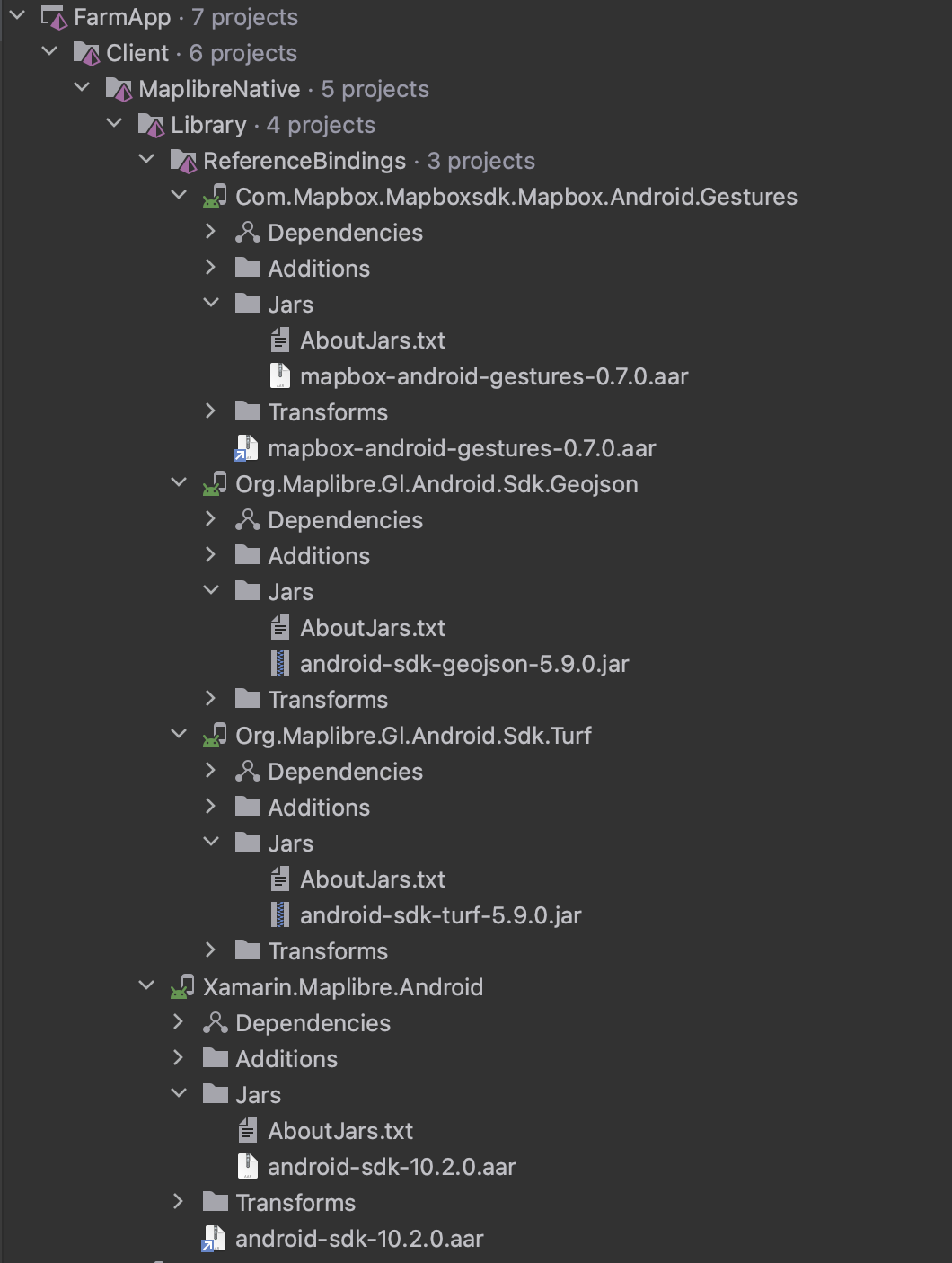
Additionally, we drew valuable insights from another article by Tuyen Vu Duc, focusing on rendering Maplibre maps inside a MAUI component using platform-specific code.

2. Rendering Maplibre and Blazor on the Same Screen

To render both MAUI and Blazor on the same screen, we configured the BlazorWebView to be transparent and positioned our custom Maplibre view component beneath it. With this approach, the map is always rendered along with the BlazorWebView component.
<?xml version="1.0" encoding="utf-8"?>

<ContentPage xmlns="http://schemas.microsoft.com/dotnet/2021/maui"
             xmlns:x="http://schemas.microsoft.com/winfx/2009/xaml"
             xmlns:local="clr-namespace:FarmApp.Mobile"
             xmlns:maplibre="clr-namespace:MaplibreMaui;assembly=Maplibre.Maui"
             x:Class="FarmApp.Mobile.MainPage"
             BackgroundColor="{DynamicResource PageBackgroundColor}">

    <AbsoluteLayout>

        <maplibre:MaplibreView x:Name="MaplibreView" 
                               AbsoluteLayout.LayoutBounds="0,0,1,1" 
                               AbsoluteLayout.LayoutFlags="All"/>

        <BlazorWebView x:Name="BlazorWebView" 
                       HostPage="wwwroot/index.html" 
                       BackgroundColor="Transparent" 
                       AbsoluteLayout.LayoutBounds="0,0,1,1" 
                       AbsoluteLayout.LayoutFlags="All">
            
            <BlazorWebView.RootComponents>
                
                <RootComponent Selector="#app" 
                               ComponentType="{x:Type local:Main}" />
                
            </BlazorWebView.RootComponents>
            
        </BlazorWebView>
        
        <Image Source="splash_screen_background.png"
               Aspect="AspectFill"
               x:Name="BackgroundImage"
               AbsoluteLayout.LayoutBounds="0, 0, 1, 1"
               AbsoluteLayout.LayoutFlags="All"/>
        
    </AbsoluteLayout>

</ContentPage>
On pages where the map should be visible, we set the CSS styles for the html and body tags to be transparent. When the map is not needed, we adjust the styles to hide it from the user's view.

3. Handling Events Flow

Managing events required intercepting platform-specific touch events, particularly for Android. The method we implemented handles these events; if it returns true, the event is processed by the BlazorWebView.
private bool OnTouchEvent(object e)
{
    var processResult = true;
    
    #if ANDROID 
    {
        if (e is not MotionEvent motionEvent) return true;

        if (motionEvent.ActionMasked == MotionEventActions.Move)
        {
            var x = motionEvent.GetX();
            var y = motionEvent.GetY();

            if (_pointerIsDownOnMap)
            {
                // process map move
                // foreach (var service in _services)
                //     processResult &= service.OnMapMove(x, y);
            }
        }
        
        if (motionEvent.ActionMasked == MotionEventActions.Up)
        {
            var pointerIsDownOnMap = _pointerIsDownOnMap;
            _pointerIsDownOnMap = false;

            var x = motionEvent.GetX();
            var y = motionEvent.GetY();
            const float tolerance = 0.01f;

            // process map up event
            // foreach (var service in _services)
            //     processResult &= service.OnUp(x, y);
            
            // process map click event
            // if (pointerIsDownOnMap && Math.Abs(x - _downPointerPos.X) < tolerance && Math.Abs(y - _downPointerPos.Y) < tolerance)
            //     foreach (var service in _services)
            //         processResult &= service.OnClick(x, y);
        }
        
        if (motionEvent.ActionMasked == MotionEventActions.Down)
        {
            var x = motionEvent.GetX();
            var y = motionEvent.GetY();
            
            if (!(_pointerIsDownOnMap = MapCollisionResolver.IsPointerOnMap(x, y))) return true;

            _downPointerPos.X = x;
            _downPointerPos.Y = y;
            
            // process map down event
            // foreach (var service in _services)
            //     processResult &= service.OnDown(x, y);
        }

        if (motionEvent.ActionMasked is MotionEventActions.PointerDown or MotionEventActions.Pointer1Down or MotionEventActions.Pointer2Down or MotionEventActions.Pointer3Down)
        {
            var x = motionEvent.GetX();
            var y = motionEvent.GetY();
            
            if (motionEvent.PointerCount > 1)
            {
                // process map up event
                // foreach (var service in _services)
                //     processResult &= service.OnUp(x, y);
            }
        }
    }
    #elif IOS
    {
    }
    #endif
    
    if (processResult || _pointerIsDownOnMap)
        MaplibreView.TriggerTouchEvent(e);

    return processResult;
}
In this method, you may want to add handlers for your map-related objects. For example, if Maplibre detects a down action on an object at given coordinates, you might want to render a modal with Blazor tools and return false to indicate that the event is processed and should not be passed to the BlazorWebView.
public bool OnClick(float x, float y)
{
    var mapModalService = ServiceLocator.Resolve<IMapModalService>();
    if (!IMapSteadService.IsDrawingModeOn || MaplibreMapService is null ||
        mapModalService is null) return true;

    if (_polygonDrawn)
    {
        var vertexFeature = MaplibreMapService.QueryFeatureByPoint(VerticesLayerId, x, y);
        if (vertexFeature is not null)
        {
            var coordinateElement = vertexFeature.Coordinates.FirstOrDefault();
            if (coordinateElement is not double[] vertexCoords || _polygonPoints.Count <= 4) return true;

            if (!vertexFeature.Properties.TryGetValue("index", out var vertexIndexObj) ||
                vertexIndexObj is not Java.Lang.Double javaDouble || MaplibreMapService is null) return true;

            _selectedPointFeatureId = (int) javaDouble.DoubleValue();
            
            var point = MaplibreMapService.ScreenLocationFromLatLng(new LatLng
                { Lng = vertexCoords[0], Lat = vertexCoords[1] });

            mapModalService.Show(MapModalType.CloseButton, point.X / ScreenOffsetProvider.Density,
                point.Y / ScreenOffsetProvider.Density);
            
            UpdateSource();
            
            return false;
        }

        _selectedPointFeatureId = null;
        UpdateSource();

        return true;
    }

    _polygonDrawn = true;
    var latLng = MaplibreMapService.LatLngFromScreenLocation(x, y);
    var zoom = MaplibreMapService.Zoom;

    var squareArr = MapUtils.GetSquare(new[] { latLng.Lng, latLng.Lat }, 50, zoom);

    _polygonPoints.Clear();
    _polygonPoints.AddRange(squareArr);

    UpdateSource();
    
    return true;
}
Additionally, rendering UI elements on top of the map requires extra event handling. When an event goes through the pipeline, we check for collisions with UI elements on the screen. If a collision is detected, the event is handled by the BlazorWebView instead of the Maplibre view.
public static class MapCollisionResolver
{
    public static bool IsPointerOnMap(float x, float y)
    {
        var pointerIsOutsideOfBottomPanel = CheckForBottomPanel(x, y);
        return pointerIsOutsideOfBottomPanel;
    }
    
    private static bool CheckForBottomPanel(float x, float y)
    {
        const int boxHeight = 60;
        const int leftRectX = 20;
            
        var cssX = x / ScreenOffsetProvider.Density;
        var cssY = y / ScreenOffsetProvider.Density;
            
        var cssWidth = ScreenOffsetProvider.ScreenWidth / ScreenOffsetProvider.Density;
        var cssHeight = ScreenOffsetProvider.ScreenHeight / ScreenOffsetProvider.Density;

        var topRectY = cssHeight - boxHeight - ScreenOffsetProvider.Bottom;
        var bottomRectY = cssHeight - ScreenOffsetProvider.Bottom;

        var rightRectX = cssWidth - 20;

        return !CheckIfPointInRectangle(cssX, cssY, leftRectX, topRectY, rightRectX, bottomRectY);
    }

    private static bool CheckIfPointInRectangle(float pX, float pY, float rectULx, float rectULy, 
        float rectLRx, float rectLRy)
    {
        return pX >= rectULx && pX <= rectLRx && pY >= rectULy && pY <= rectLRy;
    }
}

4. Creating a Maplibre Control Service

We encapsulated the required functionality in an IMaplibreMapService. If you're familiar with Mapbox JS or Maplibre JS, you'll find a lot of useful functionality within this service. Feel free to extend the AndroidMaplibreMapService to add new features as needed. The only limitation is the native Maplibre library itself.
using MaplibreMaui.Models.Features;
using MaplibreMaui.Models.Layers;
using MaplibreMaui.Models.Sources;
using LatLng = MaplibreMaui.Models.Layers.LatLng;

namespace MaplibreMaui.Services;

public interface IMaplibreMapService
{
    double Zoom { get; }
    double Bearing { get; }
    
    void SetStyle(float lat, float lng, float zoom, string styleUrl);
    void AddSource(Source s);
    void AddLayer(Layer l);

    void RemoveSource(string id);
    void RemoveLayer(string id);
    LatLng LatLngFromScreenLocation(float x, float y);
    (float X, float Y) ScreenLocationFromLatLng(LatLng latLng);
    double[] ScreenLocationFromPoint(double[] point);

    void SetGeoJsonFeature(string geoJsonSourceId, string json);
    void SetGeoJsonFeature(string geoJsonSourceId, FeatureCollection featureCollection);
    void AddBoolPropertyToFeature(string featureId, string layerId, float x, float y, string key, bool value);

    string? QueryFeaturePropertyByPoint(string layerId, string propertyKey, float x, float y);
    Dictionary<string, object?>? QueryFeaturePropertiesByPoint(string layerId, float x, float y);
    Feature? QueryFeatureByPoint(string layerId, float x, float y);
    List<Feature> QuerySourceFeatures(string sourceId, string sourceLayer, string filterExpression);
    List<Feature> QuerySourceFeatures(string sourceId, string filterExpression);
    List<string> QuerySourceFeaturesAsJson(string sourceId, string sourceLayer, string filterExpression);
    
    void SetFilter(string layerId, string filterExp);
    void SetProperty(string layerId, string property, object? val);
    void SetZoomRange(string layerId, float min, float max);
    void FlyTo(float x, float y, float zoom);
    void ResetBearing();
    void CancelTransitions();

    void ToggleActions(bool toggle);
    void ToggleDoubleTapActions(bool toggle);
    void ToggleQuickZoomActions(bool toggle);
    void ToggleCompass(bool toggle);
    void ToggleDebugMode(bool toggle);
}

Conclusion and Further Resources

We hope this article proves useful for those looking to integrate the Maplibre native library into a MAUI Blazor hybrid app project. Our example project is available in this GitHub repository. Feel free to explore it, ask questions, and propose better solutions. Also you can explore our application implemented using that approach - farm-app.site
Here is a demo of the example application (tabs above the map are rendered with Blazor):

Feel free to connect with me on LinkedIn for updates, discussions, and more insights on Blazor and other development topics. You can find my LinkedIn profile here. I welcome any questions or feedback, and I’m always open to networking with fellow developers.
Thank you for reading, and happy coding!

You may also read

Implementing Reliable Modals in Blazor
Modals are a ubiquitous feature in modern web development, providing a way to display content overlaying the main application without navigating away from the current page. In Blazor, implementing modals effectively is crucial for delivering a seamless user experience. However, developers often encounter various challenges when working with modals in Blazor, such as positioning issues, handling scrollable content, and managing component hierarchies.
Ruslan Dudchenko
Ruslan Dudchenko
20 May 2024
Generating Code 128C Barcodes in Blazor: A Step-by-Step Guide
This article delves into the implementation of barcode rendering, focusing specifically on Code 128C, using Blazor and C#. The goal is to generate barcodes entirely within a Blazor application by implementing the encoding algorithm in C#. While this article primarily focuses on Code 128C, the same algorithmic approach can be adapted to render other types of barcodes, making it a versatile solution for various use cases.
Ruslan Dudchenko
Ruslan Dudchenko
22 Nov 2024
Using npm Packages in Blazor Applications
Modern applications often combine different technologies, and this is especially true for projects built with .NET Blazor. While Blazor provides a strong and flexible framework, there are cases where existing JavaScript solutions already solve a problem very well.
Ruslan Dudchenko
Ruslan Dudchenko
28 Dec 2025

What our clients say

Senior Angular Developer

Aug 11, 2025

Need help fixing an Azure Key Vault issue in Blazor Server

Apr 3, 2025

Need help fixing Graph connection issue in Blazor Server (prod env)

Mar 11, 2025

C# Blazor + EF Core Tutor — 1:1 mentoring / pair debugging

Feb 13, 2026

Azure Pipeline for .Net Maui

Jan 4, 2025

Epic Solutions Grocery project

Dec 9, 2024

.NET C# Blazor Developer for CRM Rewrite

Oct 6, 2022

Excellent work from start to finish. The developer resolved all problems in our Angular app and delivered new features without any fuss. Professional, reliable, and highly skilled.

FAQ

Do you provide support after launch?

Yes, we provide post-launch support, including maintenance, updates, bug fixes, and product improvements as needed.

How long does it take to develop a website or an app?

The timeline depends on the project complexity. On average: a website takes 2–6 weeks, and an app takes 2–4 months.

Can you help if I don’t have a clear idea yet?

Yes, we help shape your idea, define features, and create a product concept.

How much does project development cost?

The cost depends on the scope and complexity. We provide a custom estimate after discussing your requirements.

Can I order a redesign of an existing website or app?

Yes, we offer redesign services, improve UX/UI, and update the functionality of existing products. We also have strong experience working with legacy systems and complex codebases.

Is it possible to order only design or development?

Yes, you can order design or development separately based on your needs.

Which countries do you work with?

We work with clients worldwide and have experience with international projects.

Let’s team up!

Fill out the form to get in touch

By clicking this button I accept Privacy Policy of this site.

Got an idea?

We're all ears 😊

Drop us a line

admin@vertexcode.dev