Using npm Packages in Blazor Applications



Introduction
Modern applications often combine different technologies, and this is especially true for projects built with .NET Blazor. While Blazor provides a strong and flexible framework, there are cases where existing JavaScript solutions already solve a problem very well.
In one of our recent projects, we needed to integrate functionality that was already available as an npm package. The package was quite large, highly specialized, and actively maintained by a third-party vendor. Rewriting it in C# was not a good option. It would require significant effort and would make it difficult to keep up with future updates.
Because of this, we decided to use the npm package directly in our Blazor application. However, doing this in a clean and maintainable way is not always obvious, especially in a Blazor setup. Questions quickly appear around project structure, build process, and long-term maintainability.
This article describes an approach that allows npm packages to be used in a Blazor application without mixing frontend tooling into the main app project. The solution keeps responsibilities clearly separated and integrates naturally into the .NET build pipeline.
A complete demo project is available on GitHub and is referenced in this article, so the full setup can be reviewed and reused if needed.
The General Idea Behind the Approach
The idea behind this approach is very simple.
We take an npm package and build it into a single, minified JavaScript file that can be used by the main Blazor application. For this, we use Vite, which handles bundling and dependency resolution for us.
All npm-related work lives in a separate .NET Razor Class Library. This is important because Razor class libraries can expose static web assets automatically. By keeping JavaScript in its own project, we avoid mixing frontend tooling with the main application code.
The build process is controlled from the .csproj file. During a normal .NET build, MSBuild runs the npm build script and then copies the generated JavaScript file into wwwroot. Because the output is placed under wwwroot, it becomes available to the Blazor app as a standard static web asset. This is also why the project type matters — the Razor SDK handles this asset routing for us.
Folders related to npm, such as node_modules, build output, and the _generated folder inside wwwroot, are excluded from Git. These folders contain either third-party dependencies or generated files. They can change between builds, and committing them would only pollute the repository without adding real value.
As a result, the repository stays clean, the build remains reproducible, and the main Blazor application consumes only a stable JavaScript file produced by the build pipeline.
Step-by-Step Demo with simple-statistics npm
To demonstrate this approach, we will use the simple-statistics npm package. It is a good example because it provides useful functionality, has real dependencies, and is clearly something that makes more sense to reuse than to rewrite in C#.
The first step is to create a Razor Class Library. This project will contain all npm-related code and configuration. Inside the project folder, a standard npm setup is initialized by running npm init, which creates the package.json file. After that, the simple-statistics package is added by running npm install simple-statistics. These steps prepare the project to build JavaScript code using npm and Vite.
Next, Vite is configured. Vite is responsible for bundling the npm package and its dependencies into a single JavaScript file. It is added to the project by running npm install vite and then creating a basic vite.config.js file. Below is demo of the vite.config.js file.
A small JavaScript entry file is defined, usually under a src folder. This file imports the required functions from simple-statistics and exposes them in a simple form that can later be called from Blazor using JavaScript interop. When the Vite build runs, it processes this entry file and produces a single, minified JavaScript file as output. Below is demo index.js that exposes functions to be used in Blazor.
The JavaScript build is triggered from the .csproj file. During the .NET build process, MSBuild runs the npm build script and waits for it to finish. Below is demo of .csproj file.
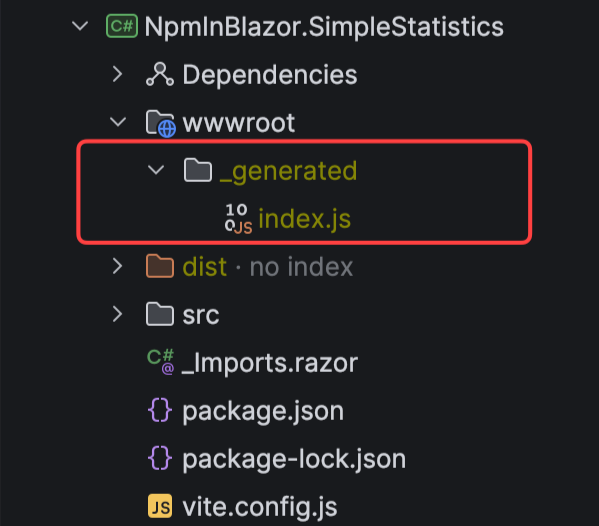
After that, the generated JavaScript file is copied into the _generated folder under wwwroot. Because this folder is part of wwwroot, the file is automatically exposed as a static web asset. Below is an image demonstrating the _generated folder in the project structure.
At this point, no manual steps are required. Running dotnet build or building the solution from an IDE produces the JavaScript file every time, ensuring that the output is always in sync with the npm sources.
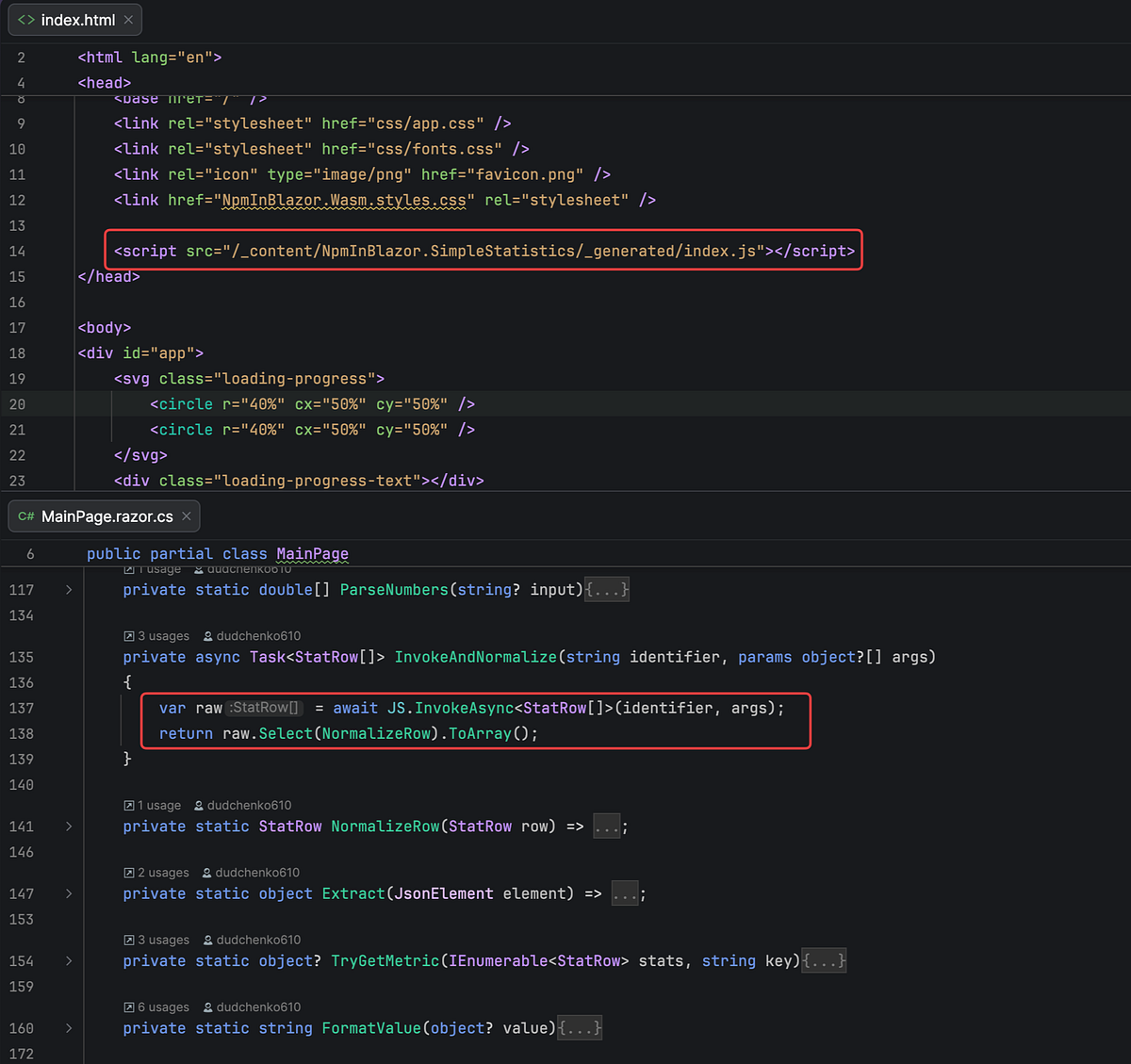
In the main Blazor application, the generated file is referenced using a normal <script> tag. From the application’s point of view, this JavaScript file is no different from any other static file. Blazor JavaScript interop can then be used to call the functions provided by simple-statistics.
All npm-related folders, including node_modules, intermediate build output dist, and the _generated folder, are excluded from version control (in .gitignore). These files are generated automatically and may change between builds, so keeping them out of Git helps maintain a clean and stable repository.
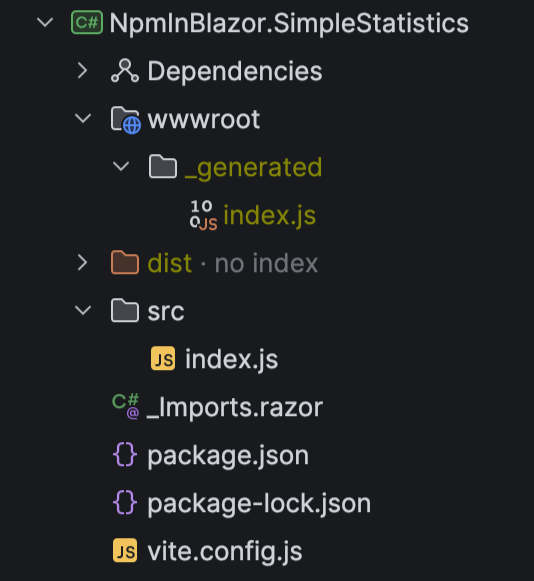
This completes the setup. The Blazor application consumes a stable JavaScript bundle, while the npm package remains isolated, easy to update, and fully controlled by the build pipeline. The resulting project structure of the .Net peoject that builds npm looks like on the image below.
Why This Works Well in Practice
This approach has a few advantages that became very clear over time.
First, JavaScript and .NET responsibilities are clearly separated. The Blazor app remains clean and focused on UI and application logic, while the npm project behaves like any other frontend library.
Second, updates are easy. When the vendor releases a new version of the npm package, we update package.json, rebuild, and we’re done. No rewrites, no fragile ports.
Third, the build is deterministic. Everything that ends up in wwwroot/_generated is produced by the build pipeline, not by hand. That makes CI/CD predictable and reduces “works on my machine” problems.
Finally, this pattern works just as well for MAUI Blazor as it does for regular ASP.NET Core Blazor apps, which was a major requirement for us.
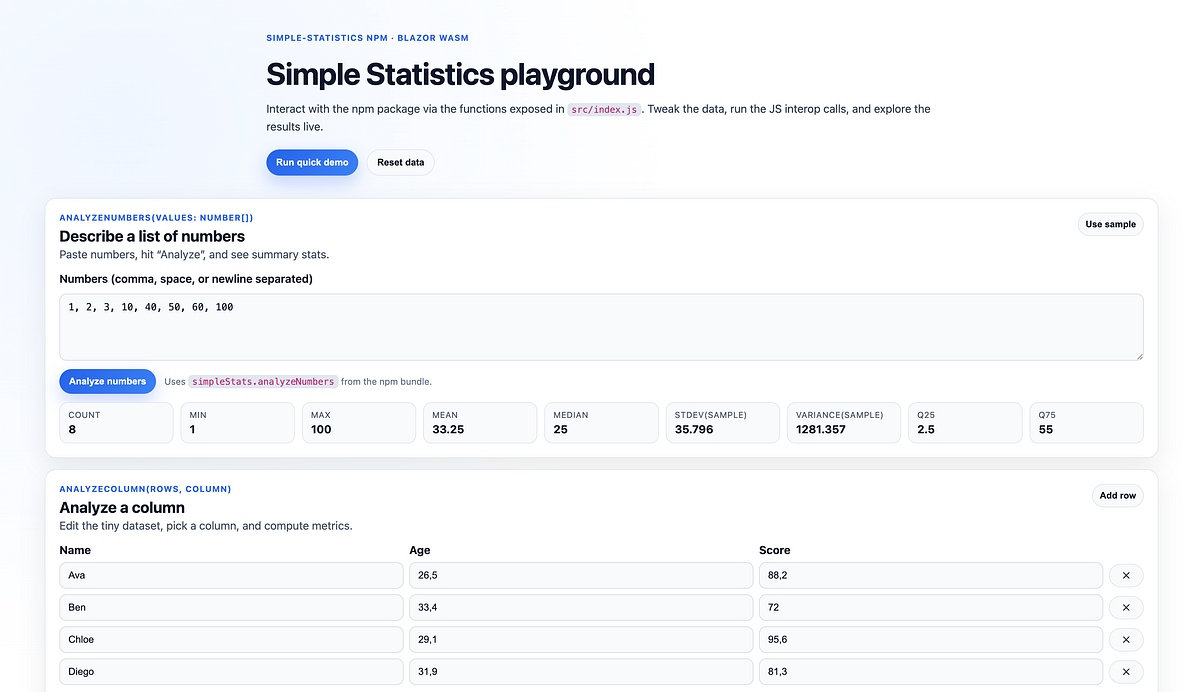
Below is screenshot of the of the app showing usage of the npm package functions.
Final Thoughts
If you are working with Blazor or MAUI Blazor and need to integrate complex or actively maintained npm packages, this type of setup may be worth considering. It allows responsibilities to remain clearly separated, scales well as projects grow, and fits naturally with both the JavaScript and .NET ecosystems.
If you have questions about any part of this integration, want to discuss the approach in more detail, or are working on something similar, feel free to reach out. You can contact me directly or connect with me on LinkedIn — I’m always open to technical discussions and feedback.
Thank you for reading, and happy coding!