Streaming Log Data Across Networks: Building a Real-Time Log Pipeline in .NET and Blazor


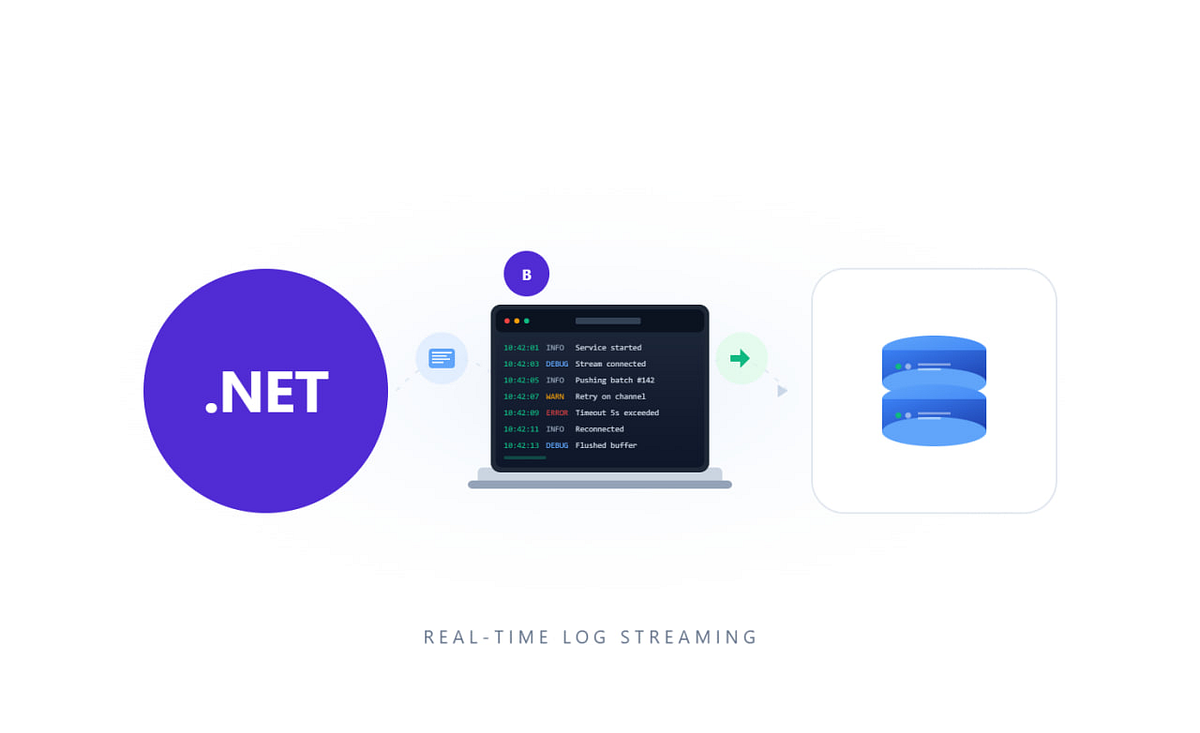
A deep dive into how we built a chunked NDJSON streaming pipeline that moves API logs from a remote client application, through a relay API, to a Blazor viewer — with two modes of consumption, a Command Pattern foundation, and zero buffering on the server.
Introduction
Every production system generates logs. The challenge isn’t producing them — it’s moving them from where they live (a client application, a remote device, a browser tab) to where they’re needed (an operator’s dashboard) without blowing up memory, blocking the UI, or losing dataМо mid-transfer.
The traditional approach is straightforward: the client collects logs, sends them in a single POST, the server stores them, and the viewer fetches them on demand. This works — until payloads grow large enough to cause timeouts, or the operator needs to see data as it arrives rather than after a full response completes.
This article walks through a production architecture that replaces the “collect-send-fetch” model with a streaming relay pipeline. The system has three actors:
- Client — a Blazor WebAssembly app that stores logs in IndexedDB and streams them as NDJSON chunks to an API.
- API — a minimal ASP.NET Core service that acts as a relay, connecting an incoming client stream to a waiting viewer stream with zero intermediate buffering.
- Viewer — a Blazor Server app that initiates the fetch, opens the client in a new tab, and consumes the stream either incrementally (streaming mode) or as a complete batch (get-all mode).
The full data lifecycle is: Viewer -> API -> Client -> API -> Viewer. No intermediate storage, no database — the API is a pipe, not a bucket.
We’ll also look at how the client structures its remote requests using the Command Pattern with polymorphic JSON serialization — a foundation that makes the streaming layer possible without coupling transport to any specific data type.
Part 1: The Command Pattern — Structuring Remote Requests
Before data can stream, something has to request it. In our system, every remote operation is modeled as a command object — a plain C# class that describes what to do, without knowing how or where it will be executed.
The remote command base
Two optional linked commands create a lightweight chain: NextCommand runs after the primary operation completes; CancelCommand runs if the operation is aborted. This lets you compose multi-step workflows from atomic pieces — get logs, then clean up temp files, for example — without any orchestration layer.
A concrete command
Each request type is a subclass with only the parameters it needs. No base class bloat, no unused properties. Anyone reading the class name knows exactly what this command asks for.
Why Commands Matter for Streaming
The Command Pattern decouples intent from transport. The code that decides what data it needs doesn’t know whether that data will arrive via a REST response, a WebSocket message, or a chunked NDJSON stream. It creates a command and hands it off. This is what makes it possible to swap the underlying delivery mechanism — from batch to streaming — without changing a single line of business logic.
Part 2: Polymorphic Command Serialization
When commands cross a network boundary, standard JSON serialization loses type information. If you serialize a GetLogsCommand and the receiver only expects a RemoteCommand, how does it know which concrete class to instantiate?
A custom JsonConverter<RemoteCommand> called RemoteCommandConverter wraps every command in a type-discriminator envelope.
The Envelope Format
The Type field carries the class name; Params holds the serialized properties. This format is human-readable (you can inspect the JSON and immediately know what command it is), doesn't rely on serializer-specific metadata like $type, and works across different JSON libraries.
Auto-Discovery via Reflection
Rather than maintaining a hardcoded registry, the converter scans the assembly at construction time:
Every concrete RemoteCommand subclass is registered automatically. Add a new command type to the codebase, and it's immediately available for serialization — zero configuration, zero risk of forgetting to register it.
Recursive Serialization of Chained Commands
The WriteJson method handles NextCommand and CancelCommand by removing them from the flat serialization and re-serializing them through the same converter:
This is recursive — nested commands get the same { Type, Params } envelope treatment at every level. Without this, linked commands would lose their concrete type information and deserialize as flat RemoteCommand objects.
The ReadJson method mirrors this: it extracts the Type string, looks up the concrete class, deserializes Params into that type, then recursively processes any linked commands by passing this as the converter.
Part 3: The Streaming Relay — Zero-Buffering Data Transfer
This is the heart of the architecture. The API server acts as a relay — it connects an incoming stream from the client to an outgoing stream to the viewer without storing a single byte in memory.
The Coordination Model
The relay uses a LogStreamState object to coordinate two HTTP requests that arrive independently:
Two TaskCompletionSource instances do all the work. SourceStreamTcs resolves when the client connects and provides its request body stream. ReleaseTcs resolves when the relay has finished copying, signaling the client that it can close its connection. There is no buffer, no queue, no temporary file — just two tasks coordinating two HTTP connections.
The Controller: Two Endpoints, One Stream
The first endpoint (POST /api/logs/stream) is called by the viewer. It registers a new stream request, returns a requestId in a response header, disables output buffering, and then blocks — waiting for the client to connect and provide data. The response stays open, streaming NDJSON lines as they arrive.
The second endpoint (POST /api/logs/stream/{requestId}) is called by the client. It provides the request body stream (the NDJSON log data) and waits until the relay finishes copying.
The key detail is DisableBuffering(). Without it, ASP.NET Core would buffer the response body, defeating the entire purpose of streaming. With buffering disabled, every chunk that arrives from the client is immediately flushed to the viewer.
The Relay Service: Connecting Two Streams
The flow works like this:
- Viewer calls StartStreamAsync -> RegisterStreamRequest() creates a LogStreamState and returns a requestId. Then RelayToAsync is called, which waits on SourceStreamTcs for the client to connect.
- Client calls SubmitStreamAsync -> It finds the state by requestId, sets the source stream on SourceStreamTcs, then waits on ReleaseTcs (so the HTTP connection stays alive while data is being read).
- The relay copies -> RelayToAsync wakes up when the source stream is available, calls CopyToAsync to pipe bytes directly from the client's request body to the viewer's response body, then signals ReleaseTcs to release the client.
The entire data transfer is a single CopyToAsync call — the .NET runtime handles the chunked reading and writing at the buffer level. The API server's memory usage is constant regardless of how many log entries flow through.
The 5-minute timeout prevents orphaned states from accumulating if one side disconnects without completing the handshake.
Part 4: The Client — IndexedDB, NDJSON Chunks, and Fetch Streaming
The client is a Blazor WebAssembly application that stores generated logs in IndexedDB and streams them to the API using the Fetch API’s ReadableStream body support.
Storing Logs in IndexedDB
IndexedDB serves as the client-side log buffer. Logs are written in batches of 1,000 using transactions for efficiency. The choice of IndexedDB over localStorage is deliberate — it handles structured data, supports cursors for sequential reading, and doesn’t have the 5MB string limit.
Streaming via ReadableStream + Fetch
The most interesting piece is how logs leave the browser:
This is the client-side counterpart to the relay. Here’s what’s happening:
NDJSON format. Each log entry is serialized as a single JSON line followed by \n. This is newline-delimited JSON — a format purpose-built for streaming, because the reader can parse each line independently without waiting for the full payload.
Chunked encoding. The ReadableStream accumulates serialized log lines into a string buffer. When the buffer exceeds 4KB (CHUNK_SIZE_BYTES), it slices off a chunk and enqueues it. This ensures consistent chunk sizes regardless of individual log entry sizes, which improves network utilization.
Cursor-based reading. An IndexedDB cursor walks through the object store sequentially. Each cursor.continue() call advances to the next record and triggers processCursor again. This is memory-efficient — only one record is in memory at a time.
duplex: 'half' tells the browser to start sending the request body before the response is received. This is critical for streaming uploads — without it, the browser would buffer the entire body before sending.
The Blazor-to-JS Bridge
The LogClientService wraps these JS functions for Blazor consumption:
The Blazor component calls C# methods; the service delegates to JavaScript via IJSRuntime. The WaitForModuleAsync call ensures the JS module is loaded before any operations — this handles the race condition where Blazor's OnAfterRenderAsync fires before the ES module has finished importing.
Auto-Streaming from Query Parameters
When the viewer opens the client in a new tab, it passes the requestId and apiUrl as query parameters:
The client page checks for these parameters on first render and, if present, immediately begins streaming. No user interaction required — the popup opens and starts sending data automatically.
Part 5: The Viewer — Two Modes of Stream Consumption
The viewer is where the operator sits. It initiates the pipeline, opens the client, and consumes the resulting stream. It supports two consumption modes, selectable via a toggle.
Initiating the Pipeline
The sequence is precise:
- POST to the API (StartStreamAsync) — this registers the stream request and opens a long-lived HTTP response. The API returns the requestId in the X-Request-Id header.
- Open the client tab — the viewer builds a URL with the requestId and apiUrl as query params and opens it in a new browser tab.
- The client auto-streams — the client page detects the query params and starts pushing NDJSON data to the API.
- The API relays — CopyToAsync pipes data from the client's request body to the viewer's response body.
- The viewer reads the stream — depending on the selected mode.
Mode 1: Streaming (Incremental)
In streaming mode, the viewer uses IAsyncEnumerable<ApiLog> to consume logs one at a time as they arrive from the stream. The UI updates every 15 records — a deliberate throttle to avoid overwhelming Blazor's rendering pipeline with per-record updates. The user sees logs appearing in real time, with a visible counter ticking up.
Mode 2: Get All (Batch)
In batch mode, the viewer reads the entire stream into a string, splits by newlines, and deserializes all at once. The UI updates once at the end. This is useful for comparing performance — the viewer shows elapsed time for each mode, making it easy to demonstrate streaming’s advantage.
The NDJSON Stream Reader
The ReadStreamAsync method in LogViewerService is where raw bytes become typed objects:
This is a manual character-level NDJSON parser. It reads chunks from the stream (4KB at a time), scans for newline characters, accumulates lines in a buffer, and yields deserialized objects as they complete. The IAsyncEnumerable return type means the caller can consume logs with await foreach — the natural C# idiom for asynchronous sequences.
Why not use StreamReader.ReadLineAsync()? Because ReadLineAsync blocks until a complete line is available, which can introduce latency when chunks arrive with partial lines. The manual parser handles partial lines correctly — it accumulates characters until it hits a newline, regardless of chunk boundaries.
Virtualized Rendering
With potentially thousands of log entries, the viewer uses Blazor’s <Virtualize> component:
Virtualize only renders the DOM elements currently visible in the viewport. For 10,000 log entries, the browser might render only 50 rows at any time, keeping the DOM lightweight and scrolling smooth. The ItemsProvider callback slices the _logs list based on the current scroll position.
Part 6: Configuration and Wiring
The viewer needs to know where the API and the client live:
The LogViewerService uses these to construct URLs:
The API URL is escaped and passed as a query parameter to the client — this is how the client knows where to stream its data. The indirection is deliberate: the client never has a hardcoded API URL, so the same client deployment can serve multiple API environments.
Key Takeaways
Stream, don’t batch. The streaming mode delivers the first log entry to the viewer in milliseconds. The batch mode makes the user wait for all 1,000+ entries. For large datasets, the perceived performance difference is dramatic — and the viewer lets you toggle between modes to see it firsthand.
The API should be a pipe, not a bucket. The relay service holds zero log data. CopyToAsync moves bytes directly between two HTTP streams. This means the API's memory usage is constant regardless of payload size. For a monitoring tool that might handle sessions with tens of thousands of log entries, this is critical.
TaskCompletionSource is the coordination primitive. The entire relay mechanism uses two TCS instances to synchronize two independent HTTP requests. No locks, no semaphores, no polling — just task-based async coordination. This is a pattern worth internalizing for any scenario where two async operations need to rendezvous.
NDJSON is the right format for streaming. Each line is a self-contained JSON object. The parser can emit records as soon as a newline arrives, without waiting for a closing bracket or counting nesting levels. It’s also trivially debuggable — you can curl the stream and read it with your eyes.
Command Pattern decouples intent from transport. The same command object that requests logs works regardless of whether the response comes back as a bulk JSON array, a streamed NDJSON feed, or a WebSocket message. Changing the delivery mechanism doesn’t touch the business logic.
Disable buffering explicitly. ASP.NET Core buffers response bodies by default. For streaming, you must call DisableBuffering() and StartAsync() before writing to Response.Body. Missing this step is the most common reason streaming "doesn't work" — the data arrives, but the client doesn't see it until the response completes.
Throttle UI updates. The viewer updates every 15 records in streaming mode, not every record. Blazor Server sends UI diffs over SignalR — updating on every single log entry would flood the connection and degrade performance. The throttle keeps the UI responsive while still feeling real-time.
Conclusion
I hope this article helps you understand the architecture and implementation approach for streaming large volumes of structured data from a remote client to a Blazor-based operator interface with minimal latency and no server-side persistence. The solution presented here — Command Pattern, polymorphic serialization, stream relay, chunked NDJSON, and a Blazor viewer — provides a practical end-to-end baseline for building responsive real-time data pipelines.
The full source code for this project is available on GitHub: github.com/Vertex-Code-CoНуmmunity/dotnet-stream-bridge-demo. You can clone it, run it locally, and use it as a starting point for your own streaming scenarios.
At the same time, the ideas behind this implementation go beyond the specific log-viewing scenario. The relay service can be reused for many kinds of streamed data, not just logs. The NDJSON streaming model is applicable anywhere a producer and a consumer need to communicate efficiently through an intermediate service. Likewise, the TaskCompletionSource-based coordination pattern can serve as a reliable foundation for other asynchronous rendezvous workflows.
Another important strength of this design is observability. Each part of the pipeline exposes enough context to make troubleshooting easier in real-world conditions: the viewer displays elapsed time, item counts, and streaming progress; the client reports its IndexedDB state; and the API returns request identifiers in headers. This makes the system easier to diagnose and support without relying heavily on debugger sessions.
The sample implementation can be used as a foundation for production-ready solutions. You can extend it with filtering, authentication improvements, richer diagnostics, alternative transport layers, or support for additional streamed payload types. Contributions and feedback are welcome — feel free to open an issue or submit a pull request on the repository. When building systems that move large datasets across networks, it is often worth resisting unnecessary complexity. In many cases, the best solution is still the simplest one: connect two streams, transfer the bytes, and stay out of the way.